Introduction
Imagine the frustration of dealing with a malfunctioning multimedia setup. It can be a real headache, but fear not! The key to resolving this issue lies in making the right connections. By ensuring that all the cables and devices are properly connected, you can transform your multimedia setup from a source of frustration to a source of joy. Understanding the differences between VGA and DVI connectors can greatly enhance your overall experience, whether you're setting up a simple office setup, a gaming station, or a home cinema. The transmission of visual signals from your computer to your monitor relies entirely on these connectors. In order to help you make an informed decision about whether VGA (Video Graphics Array) or DVI (Digital Visual Interface) is the better choice for your needs, this blog post will delve into the key differences between the two and any compatibility concerns you may encounter.
Understanding VGA and DVI Compatibility
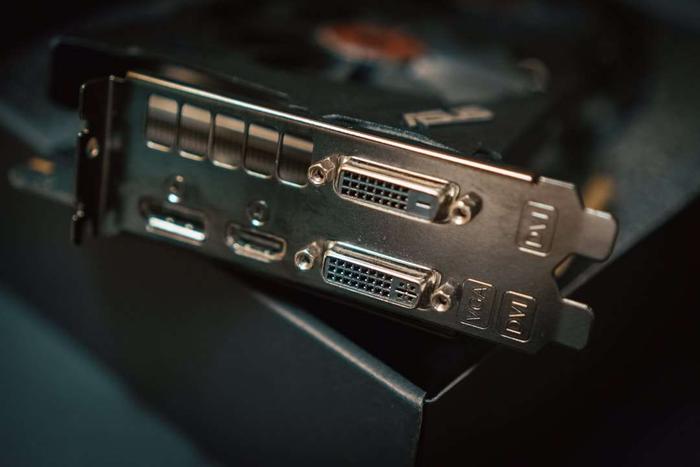
When it comes to connecting devices such as monitors, projectors, and computers, it's important to have a good grasp of the distinctions between Video Graphics Array (VGA) and Digital Visual Interface (DVI). Both types of connections serve the same purpose of transmitting video signals, but they accomplish this task in completely different ways, each with its own unique set of capabilities.
1. What is a VGA
VGA is one of the oldest video connection standards in the computing world, introduced in the late 1980s.
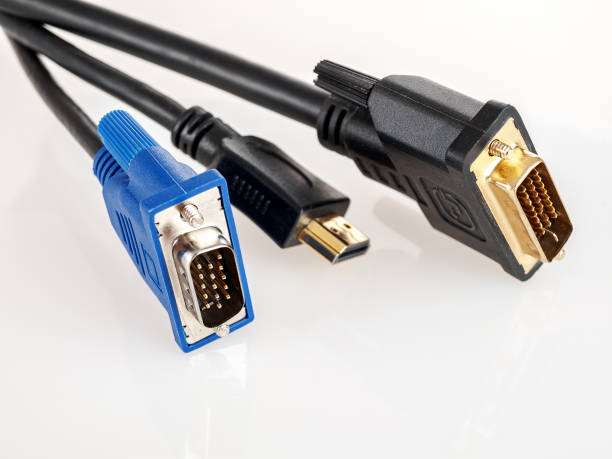
This technology predominantly transmits analog video signals. VGA connectors are easily recognizable by their 15-pin arrangement and are found on many older devices.
Although VGA can still be found on some modern devices, its usage is decreasing as newer, digital standards become more prevalent.
The analog nature of VGA means it’s more susceptible to signal degradation over long distances and at higher resolutions, which can affect the quality of the image displayed.
2. What is a DVI
Introduced in 1999, DVI was developed as a successor to VGA to accommodate the evolving needs of modern digital displays.
Unlike VGA, DVI can transmit both analog and digital video signals (depending on the specific type of DVI connector used).
It comes in three different forms: DVI-A (analog only), DVI-D (digital only), and DVI-I (integrated, capable of transmitting both analog and digital signals).
DVI connectors are broader than VGA, usually with 24 pins for digital signals with different shapes depending on their type.
Key Differences Between VGA and DVI
Knowing the main differences between these two technologies will enable you to decide which one to install or upgrade your video equipment from.
1. Analog vs. Digital Signals
The fundamental difference between VGA and DVI is in the type of signal each transmits. VGA outputs analog signals, which can degrade in quality, especially over longer distances or at higher resolutions.
In contrast, DVI primarily carries digital signals (except DVI-A), ensuring higher fidelity and more stable image quality, as digital signals do not degrade over distance like analog ones.
2. Resolution and Clarity
Resolution and clarity are significantly impacted by whether an analog or digital signal is used.
VGA, being an older technology, supports lower resolutions and is prone to issues like ghosting and signal degradation, which can result in a fuzzy appearance on higher-resolution displays.
DVI, on the other hand, supports higher resolutions—up to 2560x1600 in single-link form and even higher with dual-link configurations. This makes DVI far superior for modern applications and high-resolution displays, providing clearer, crisper images with more accurate colors.
3. Compatibility with Devices
Compatibility is another critical area where VGA and DVI differ.
VGA is almost universally compatible with older and even some modern equipment through simple adapters, making it a useful backup connection in mixed-device environments. However, as technology progresses, fewer devices support VGA natively, which can limit its usefulness in newer setups.
DVI, while not as universally compatible as VGA, is widely supported on devices from the early 2000s to the present, particularly on desktop monitors and high-definition projectors. It's important to note, though, that not all DVI-equipped devices support all types of DVI connections; checking device specifications is essential to ensure compatibility. Furthermore, for setups needing to bridge these technologies, adapters are available but they come with the potential drawbacks like reduced quality from converting digital signals to analog or vice versa.
Connecting Monitors Using VGA and DVI
The type of connection you use when setting up a monitor can have a big effect on the quality and integrity of the video stream. VGA and DVI connections are similar but different, and it's important to know how to connect them properly for the best performance.
Steps to Connect with VGA
VGA, or Video Graphics Array, is one of the oldest connection standards used in computers. To connect a monitor using a VGA cable, follow these steps:
1. Locate the VGA port: This is typically blue with 15 pins in three rows.
2. Secure the cable: Insert the VGA connector into the port and tighten the two screws on either side to ensure a stable connection.
3. Adjust settings: Turn on your monitor and computer. You might need to adjust the display settings via your computer’s control panel to ensure the monitor is recognized and displaying correctly.
4. Check resolution: VGA is analog, which might affect clarity. Check the resolution and refresh rate and adjust them within the tolerance of both your monitor and computer for the best display.
Steps to Connect with DVI
DVI, or Digital Visual Interface, is newer than VGA and supports both analog and digital signals. Here’s how to connect using a DVI cable:
1. Identify the DVI port: This port comes in several types but usually has a longer, flat hole and multiple smaller square holes for pins.
2. Connect the DVI cable: Like VGA, insert the DVI connector (make sure the pin settings match) into the port and secure it with screws.
3. Configure settings: Power up your monitor and computer, and similar to the VGA setup, adjust the display settings from your computer.
4. Optimize display: Since DVI supports higher resolution than VGA, ensure you are maximizing the potential resolution and refresh rate to benefit from the enhanced capabilities.
Compatibility Concerns and Solutions
Using VGA and DVI can make it difficult to achieve flawless connectivity between several devices because of their natural technical variations.
1. Incompatibility Issues
Compatibility issues mainly arise when trying to connect modern devices with older interfaces or vice versa. Common problems include:
- Signal type discrepancies: VGA only carries analog signals, whereas DVI can carry both analog and digital signals. Devices needing digital signals won’t display properly with a VGA connection.
- Resolution limitations: VGA connections typically do not support resolutions higher than 640x480 without noticeable quality loss, limiting the effectiveness on modern high-resolution monitors.
- Connector differences: The physical design of the VGA and DVI connectors are different, and directly plugging one into the other without a proper adapter won’t work.
2. Adapters and Converters
The solution to overcoming these compatibility issues lies in the use of adapters and converters. Using these devices, you can bridge the connection gap between VGA and DVI interfaces:
- VGA to DVI adapter: Connects a VGA output to a DVI input. This is useful for sending an analog signal from an older computer to a newer monitor, although digital benefits of DVI won’t be utilized.
- DVI to VGA adapter: Converts DVI connections to VGA for use with older monitors. This allows digital devices to connect with analog-only displays, albeit with the limitation to analog signal quality.
- Active converters: If compatibility extends beyond simple adaptation (such as requiring signal conversion from analog to digital and vice versa), an active converter is necessary. Active converters regenerate the signal between connections, ensuring both devices communicate effectively.
Conclusion: How to choose the Right Connection
If you're setting up your computer for general use, gaming, or professional graphic design, picking the right video connection can make a big difference. The right connection can lead to better image quality, higher resolutions, and overall better performance. If they don't match, you might get bad resolution, color problems, or even no output at all.
- VGA (Video Graphics Array): VGA provides analog video transmission. This means it's susceptible to signal degradation over long distances or low-quality cables, possibly resulting in a blurry display. However, VGA is widely compatible with older devices and can be a practical choice if you're operating on a legacy system.
- DVI (Digital Visual Interface): DVI transfers data in a digital format, which eliminates the potential for radio frequency interference and maintains a cleaner, crisper image quality. It's especially suitable for HD displays and is typically found on newer devices. DVI comes in several modes like DVI-A (analog), DVI-D (digital), and DVI-I (integrated, supporting both analog and digital).
To sum up, knowing the main differences between VGA and DVI connections can help you set up your video signals so they work better. Since VGA is an analog standard, it provides a simple answer that works with older devices. It works well in settings that don't need a high resolution. DVI, on the other hand, can handle both digital and analog signals, so it works with more monitor types. If you want to get the best results, always think about what your setup needs when deciding between VGA and DVI.